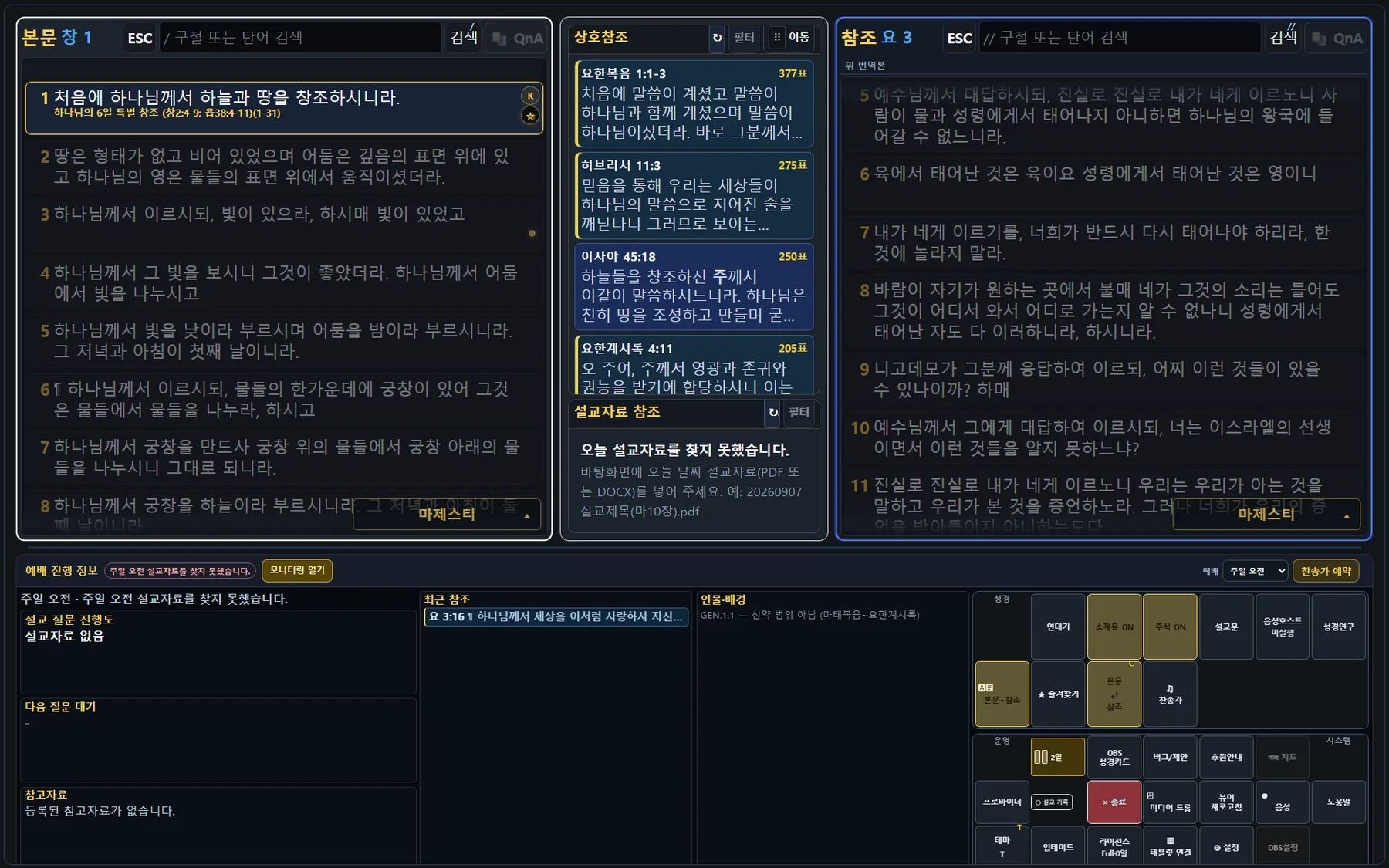
Controller screen
Verse search and passage selection, study mode, cross-references, hymns, tablet and OBS connection — all in one screen. What you change here is what the output shows.
SearchPassage / parallelHymnsOBS connection
Service program for worship · WorshipFlow
One window holds scripture text and verses, the study pane, cross-references, hymns, and media — and sends the same content straight to OBS. Tablets join by QR code, and the output opens as a browser source.
The window the operator drives, the tablet the congregation sees, and the output that reaches the room. The output opens as an OBS browser source, so there is no extra window to manage.
Verse search and passage selection, study mode, cross-references, hymns, tablet and OBS connection — all in one screen. What you change here is what the output shows.
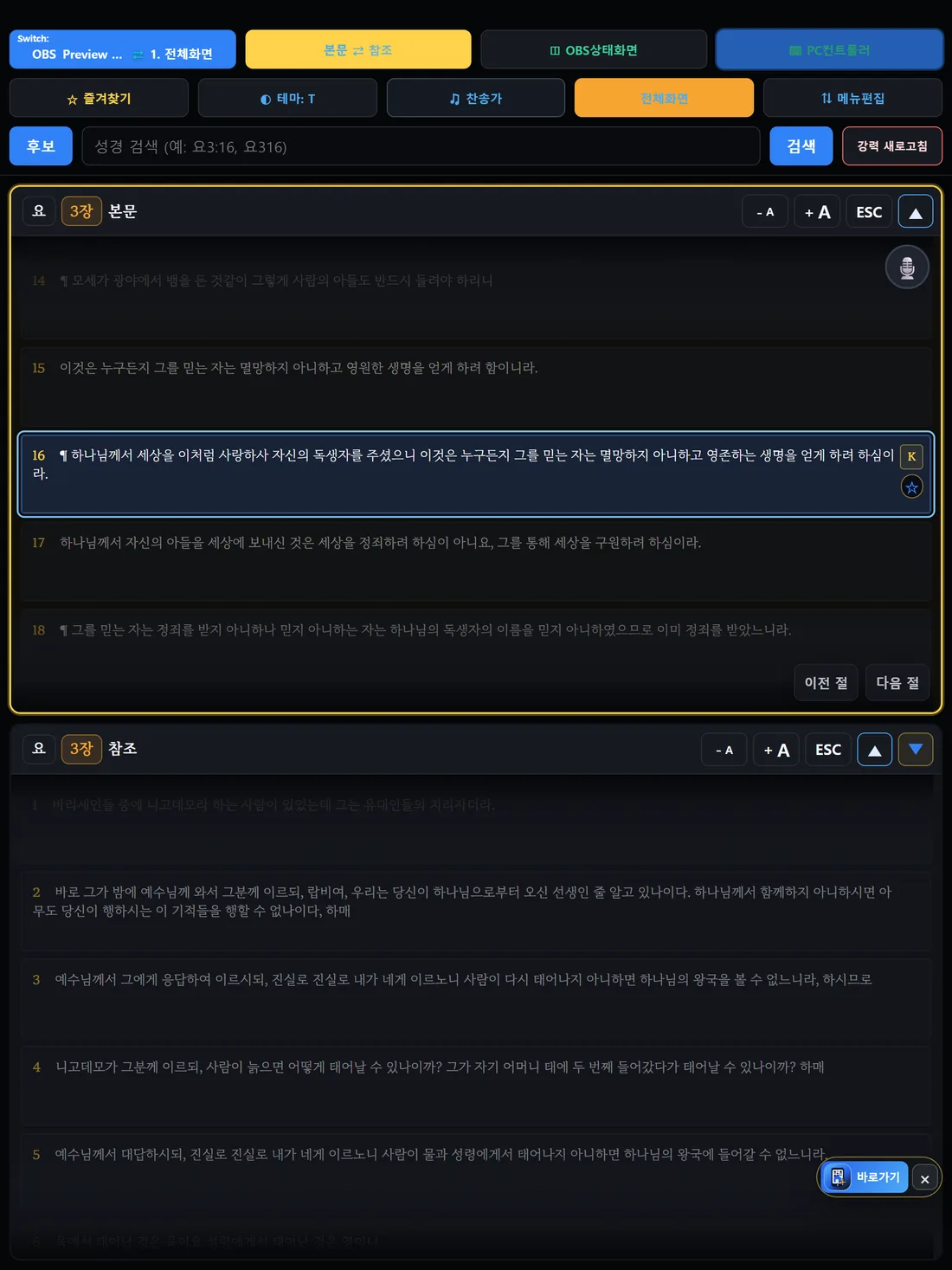
The tablet shows a QR code and the address, so anyone can join. Connected tablets share the same state, so a change made in one place follows everywhere.
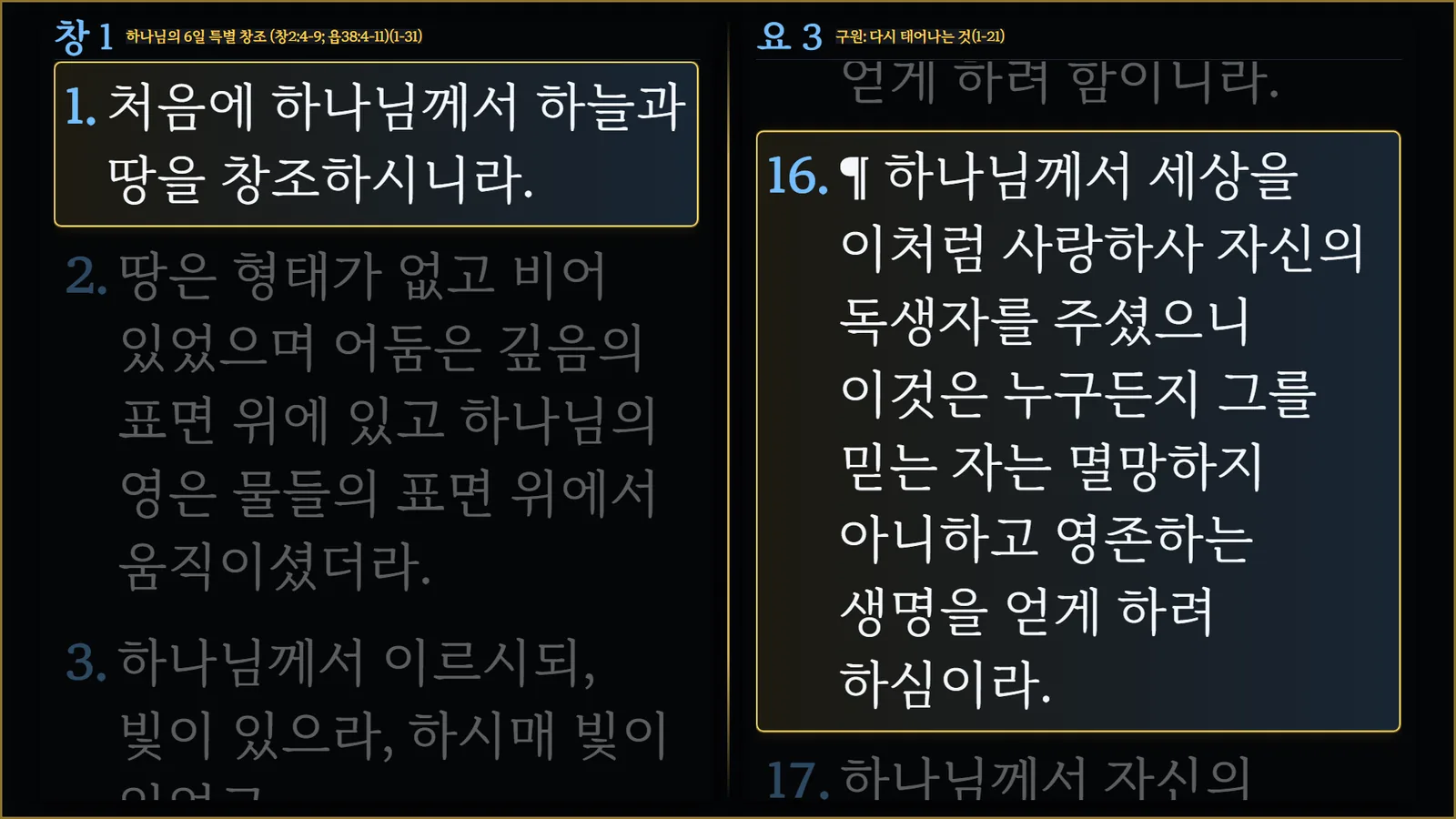
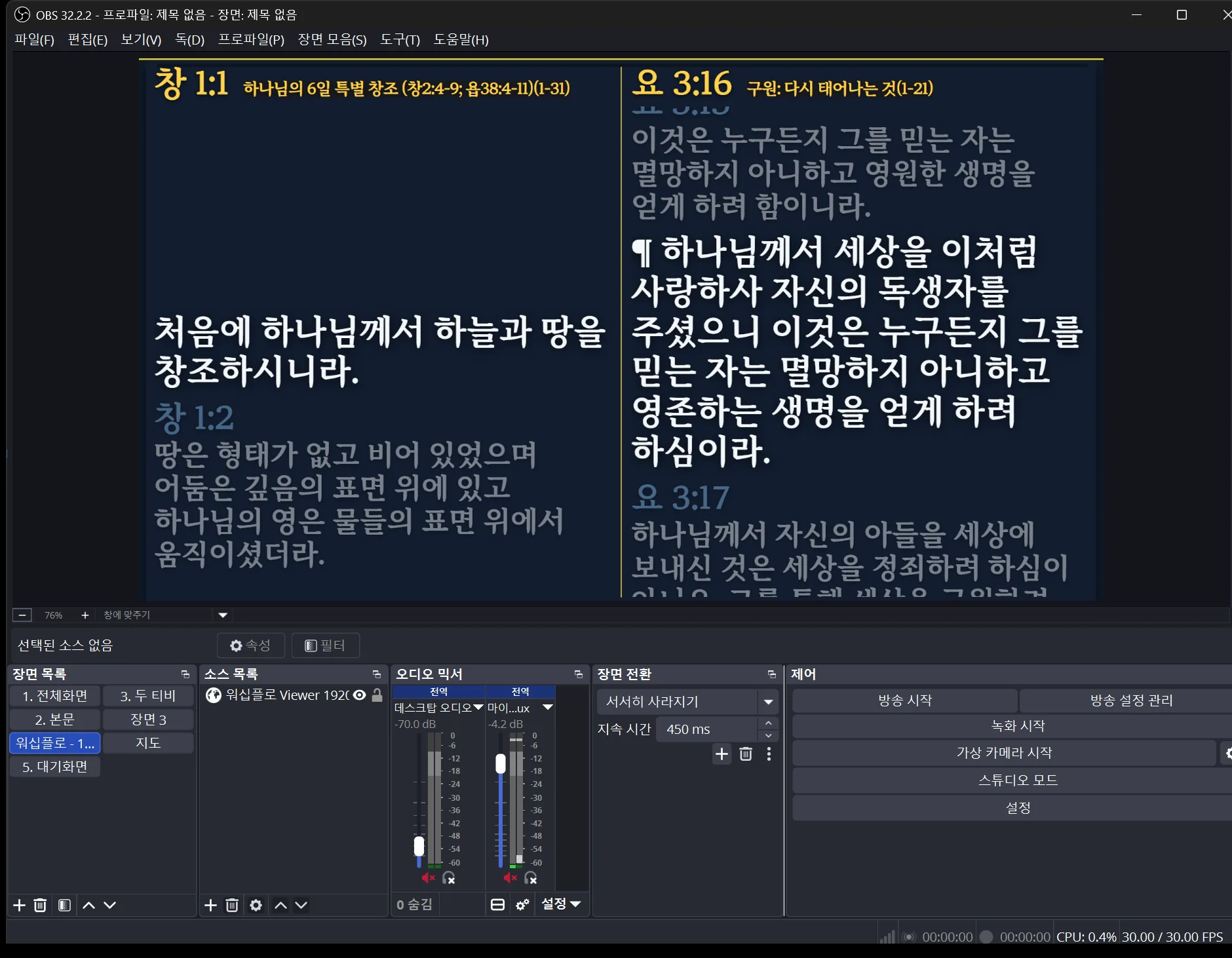
It opens as a full screen, as left and right browser sources, or as a KJV-only display — pick the shape that matches the room. Splitting left and right means adding two browser sources side by side.
Controller on the left, the same moment in real OBS output on the right, recorded side by side. Clips start muted.
Type book, chapter and verse, send the passage, then choose which verse stays on screen.
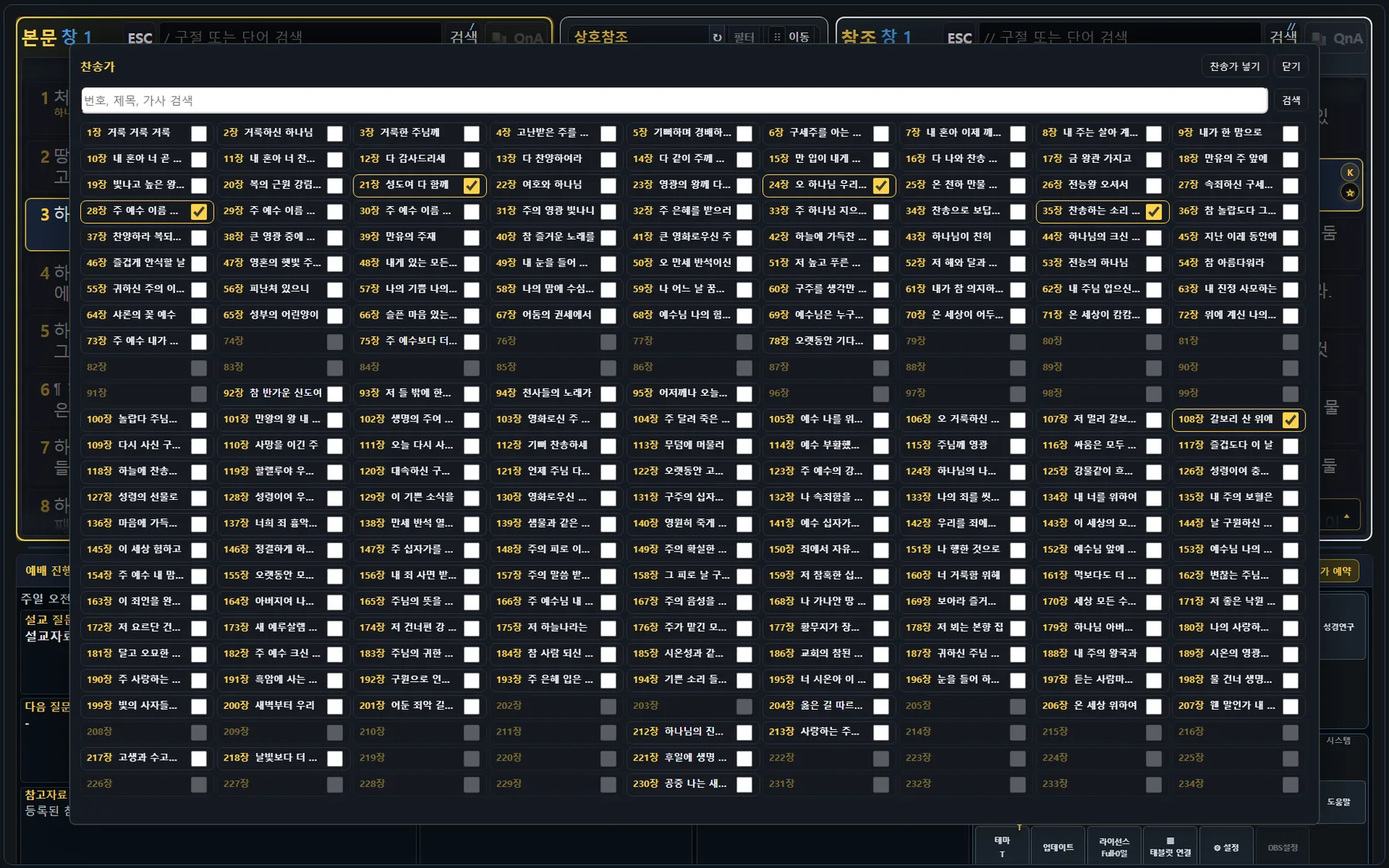
Open a hymn by number and step through the order with next and previous.
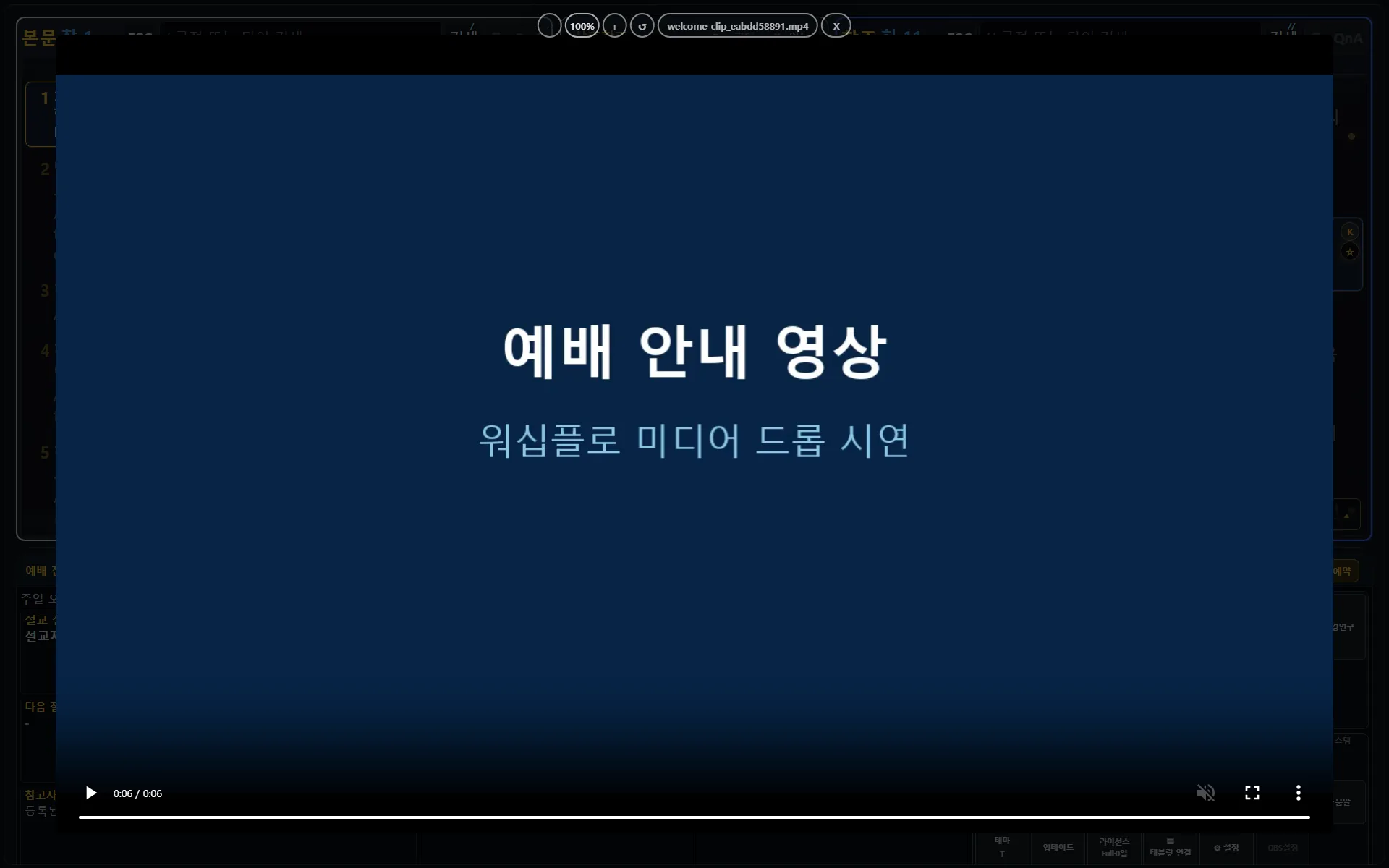
Drop an image or a video into the media pane and it appears on the output immediately.
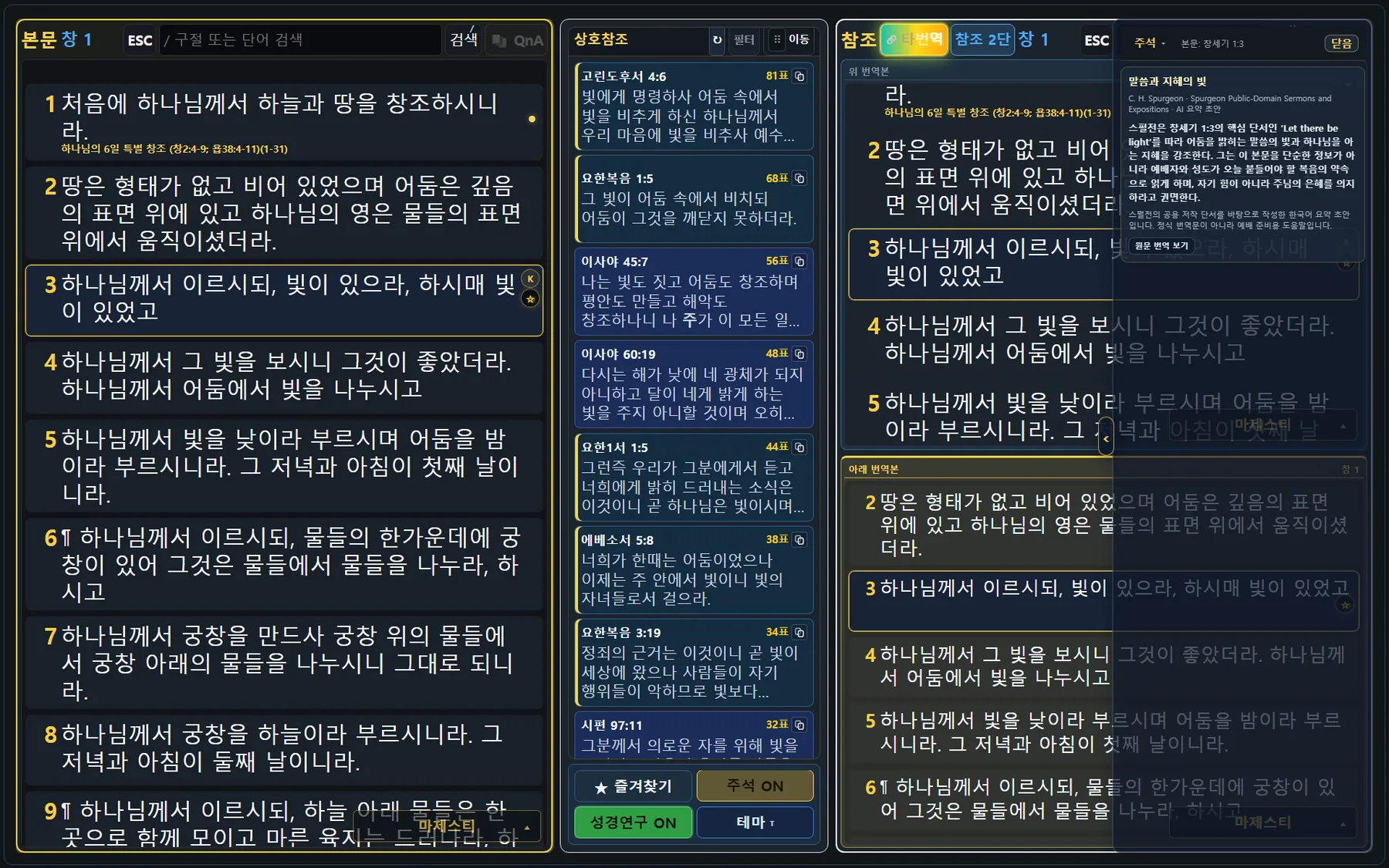
Study mode adds a reference pane beside the passage, and you can switch it between one column and two to fit the screen.
Not descriptions of features — the actual screen with the feature turned on.
Enter book, chapter and verse to bring up the passage, then choose the verse to keep on screen. The output shows the passage with the verse laid over it.
Study mode attaches a reference pane beside the passage. Switch the reference between one column and two to match the screen, and bring up a second translation alongside.
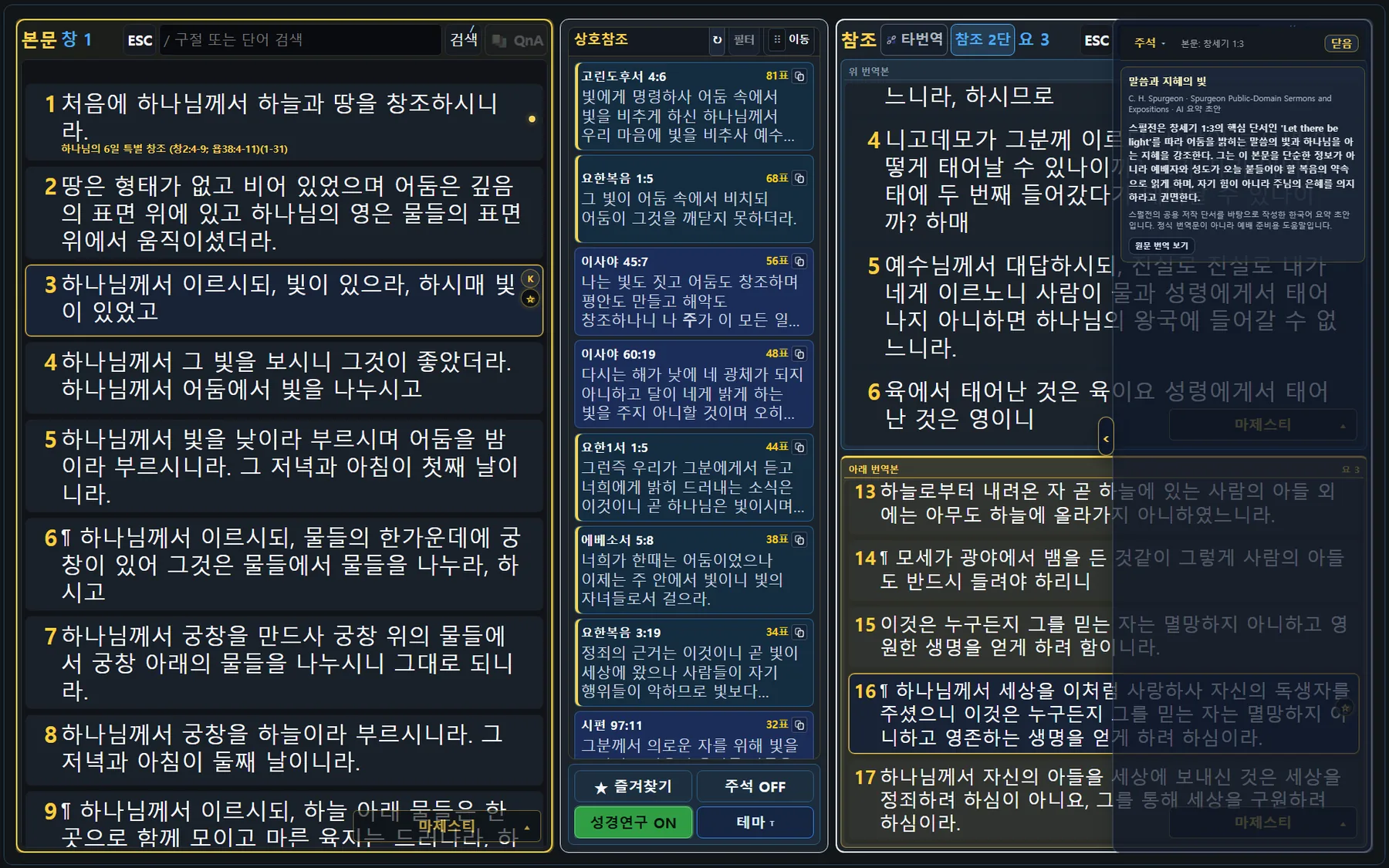
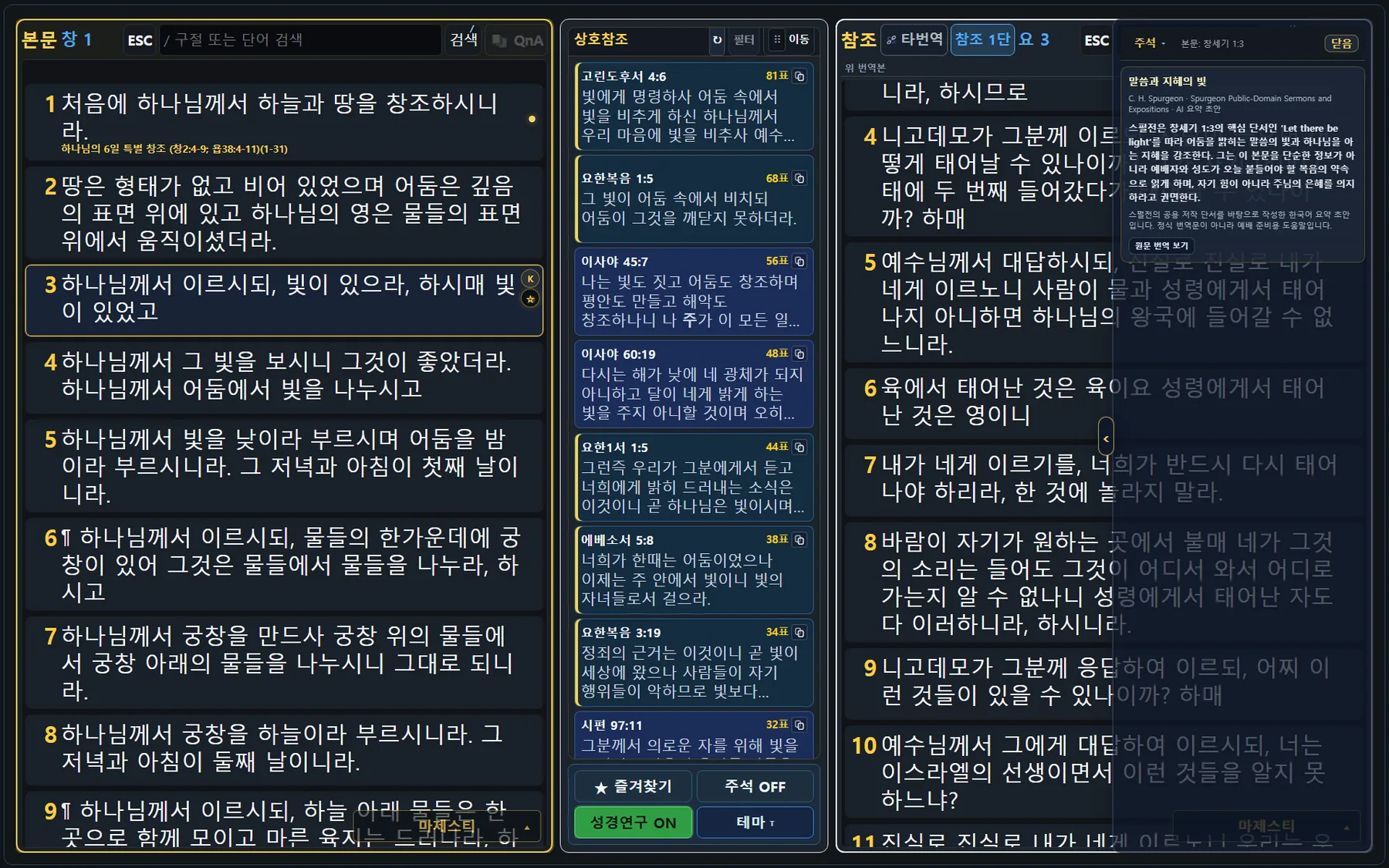
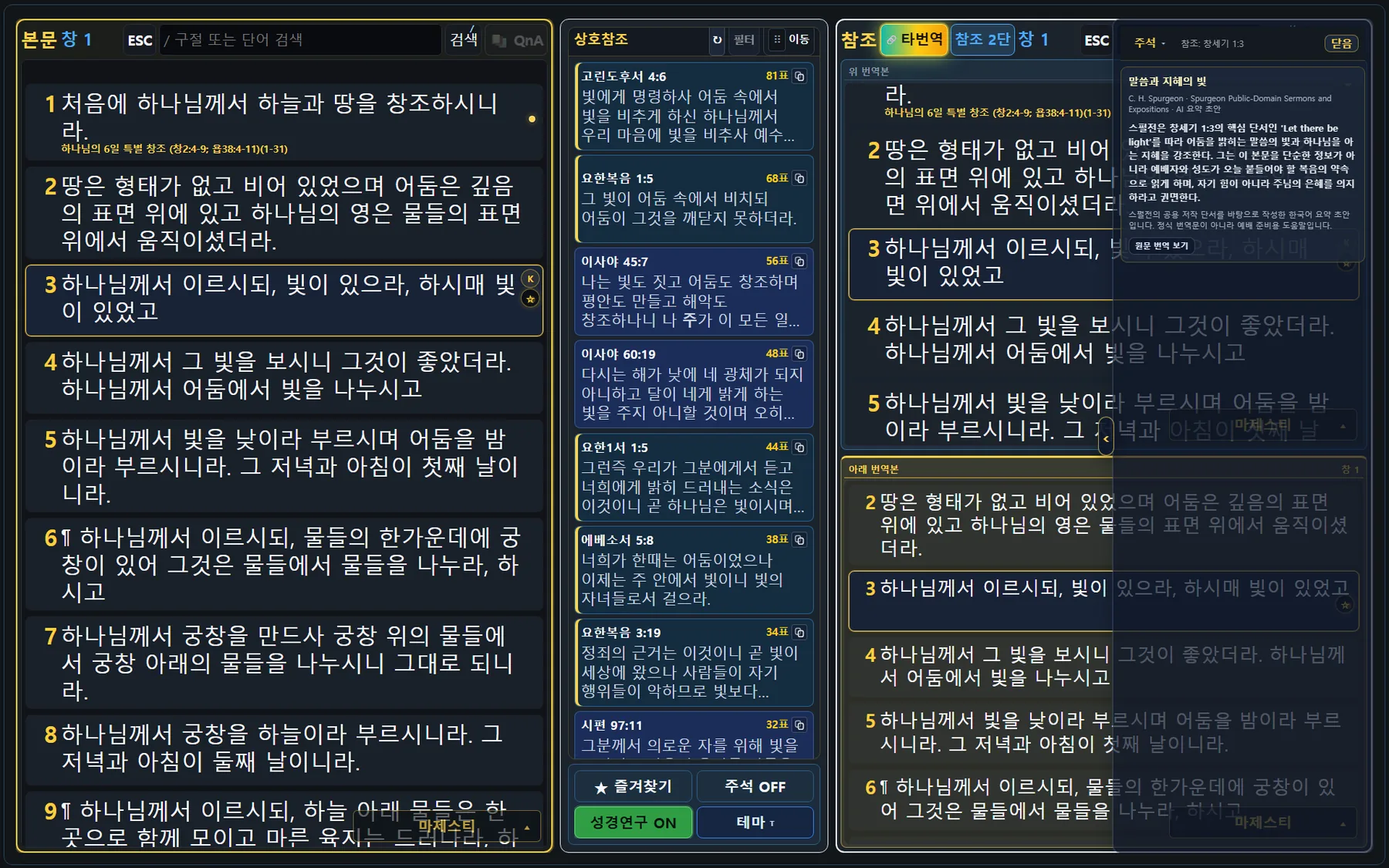
The passage and the reference each pick their own translation. With the reference split into two columns in study mode, the top and bottom panes keep separate translations, so the same verse can sit side by side in two of them.
+ add bible file opens the folder where Bible files are keptsync translations on, the chapter and verse you focus in the passage follow into both reference panes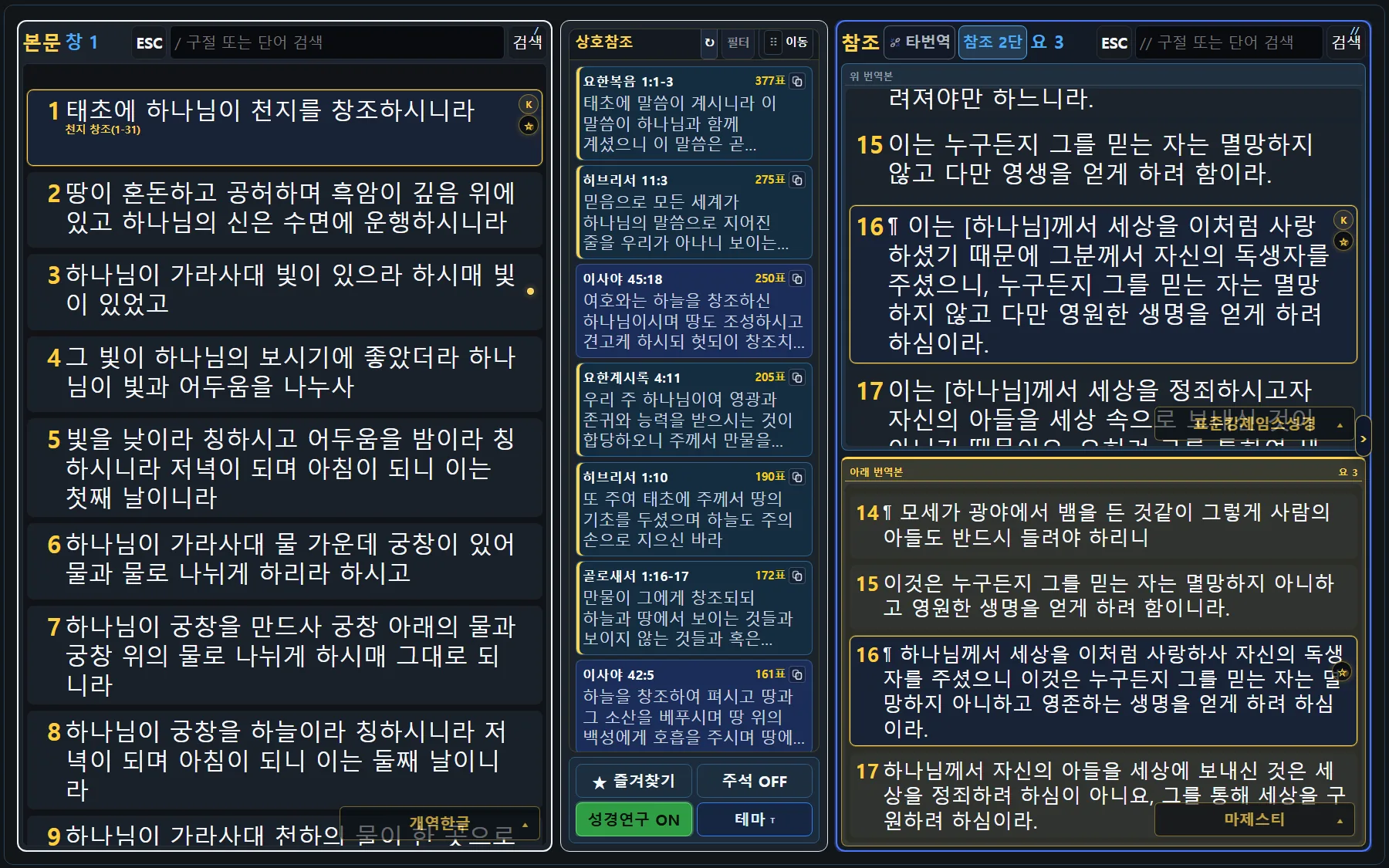
Tap a cross-reference in the passage and it moves straight into the reference pane. Each tap changes the reference, so you can follow a related text live during the service.
Keep the lines you need in a separate pane and send them to the screen one at a time as the message moves along.
Type a hymn number and the lyrics come up. Next and previous sit next to the number so the order keeps moving through the service.
A button on the controller turns KJV on and off. It shows in the full-screen output too, and there is a separate address for a KJV-only display when you want just that.
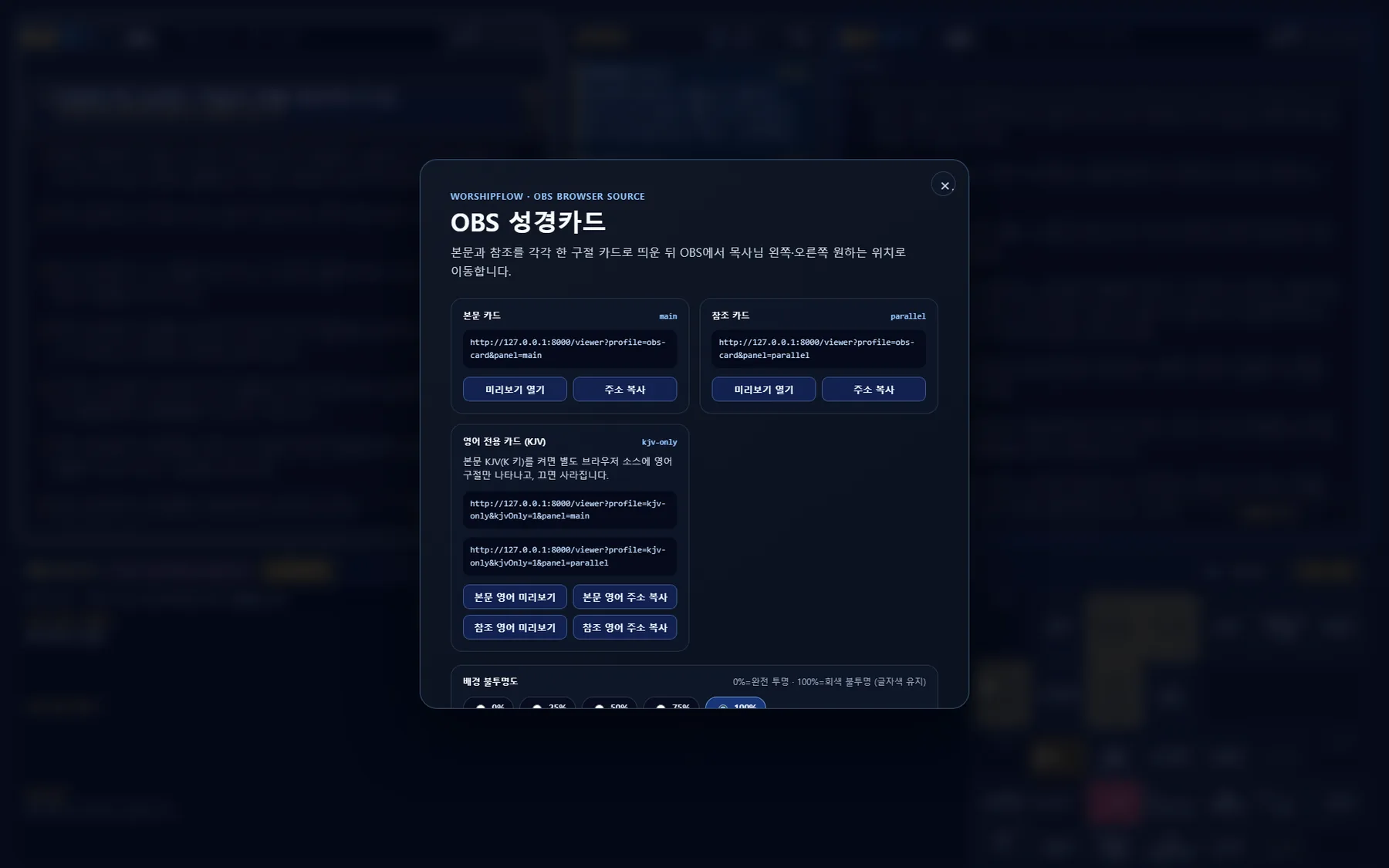
The verse card is a countdown card you put on screen. Background opacity steps from 0% to 100% in five steps — 50% lays the verse over a camera feed, and 0% leaves only the countdown.
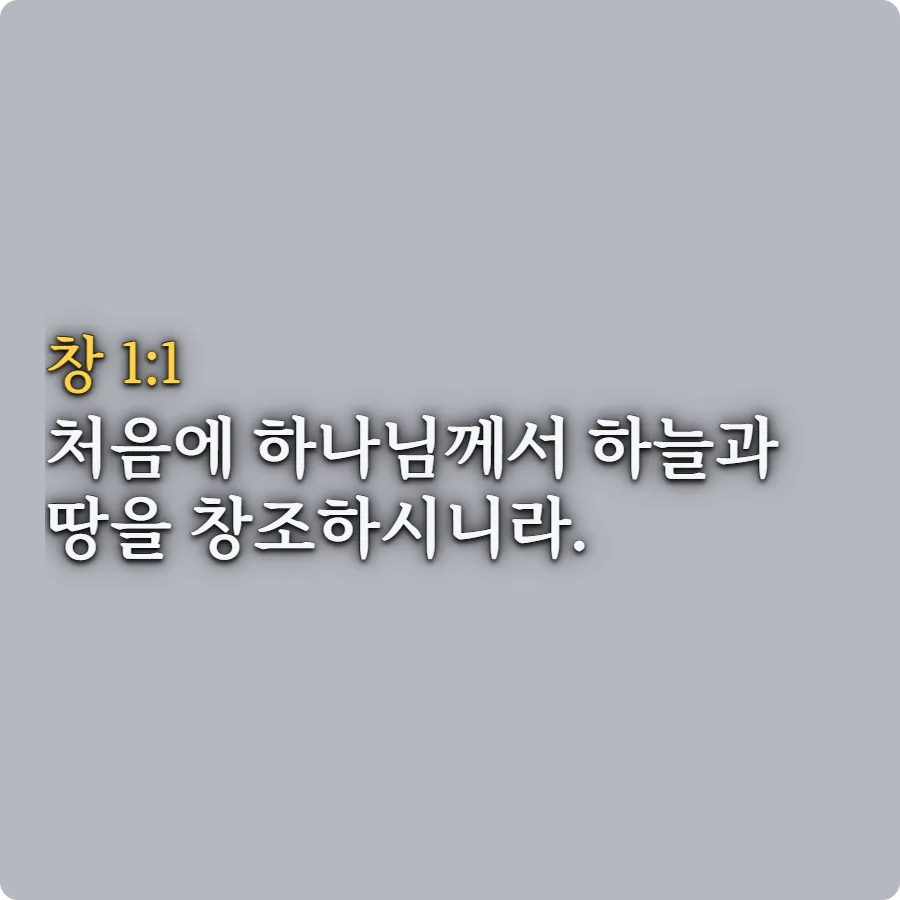
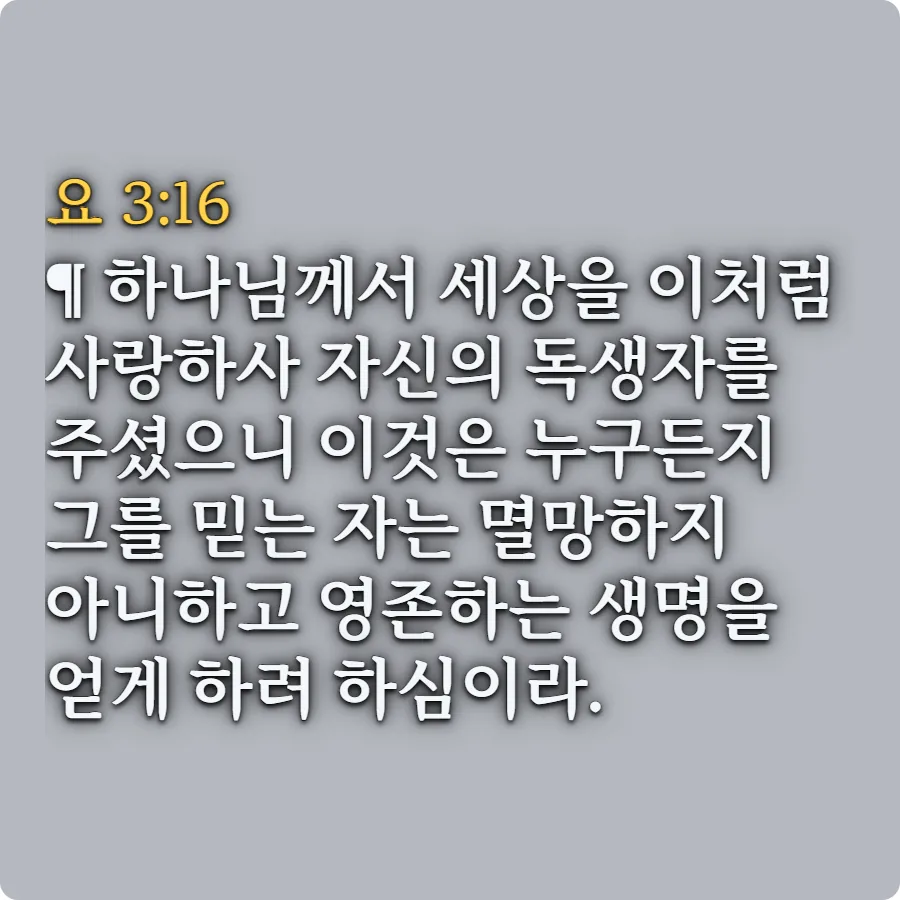
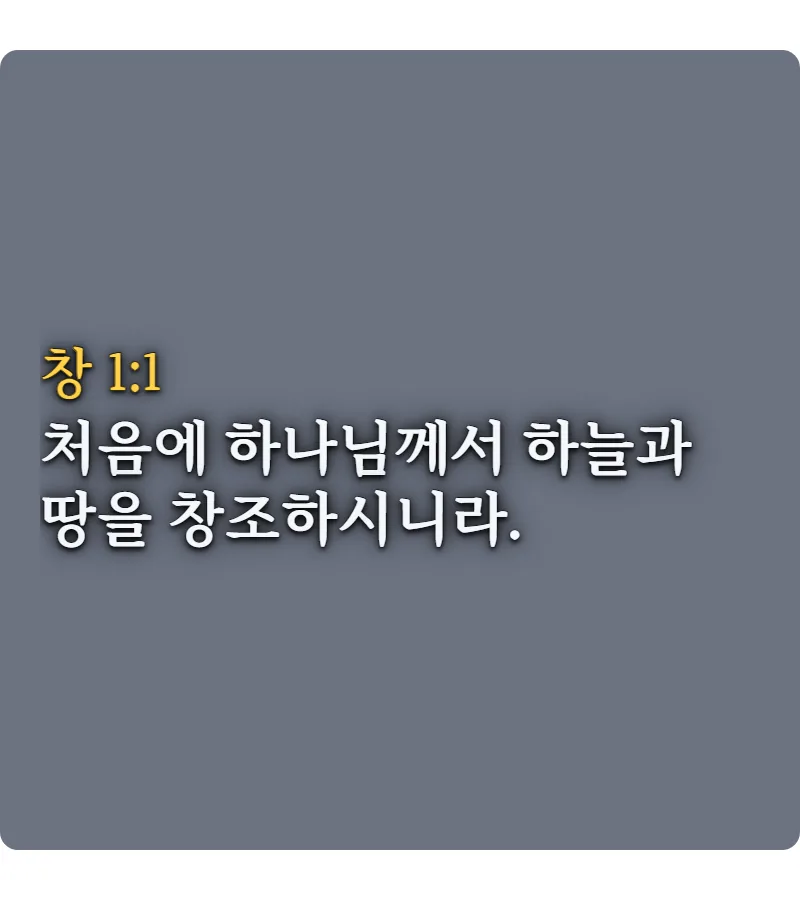
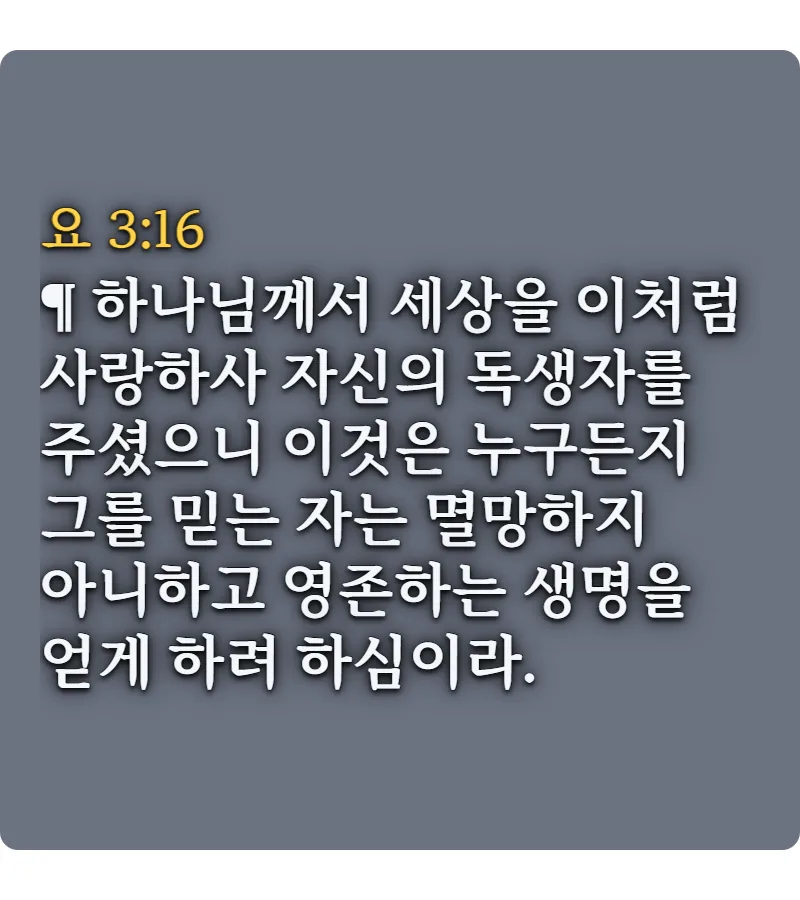
Drop a file into the media pane and it is registered immediately — the image and the video both show up in the output. These two frames are captured from real OBS output.
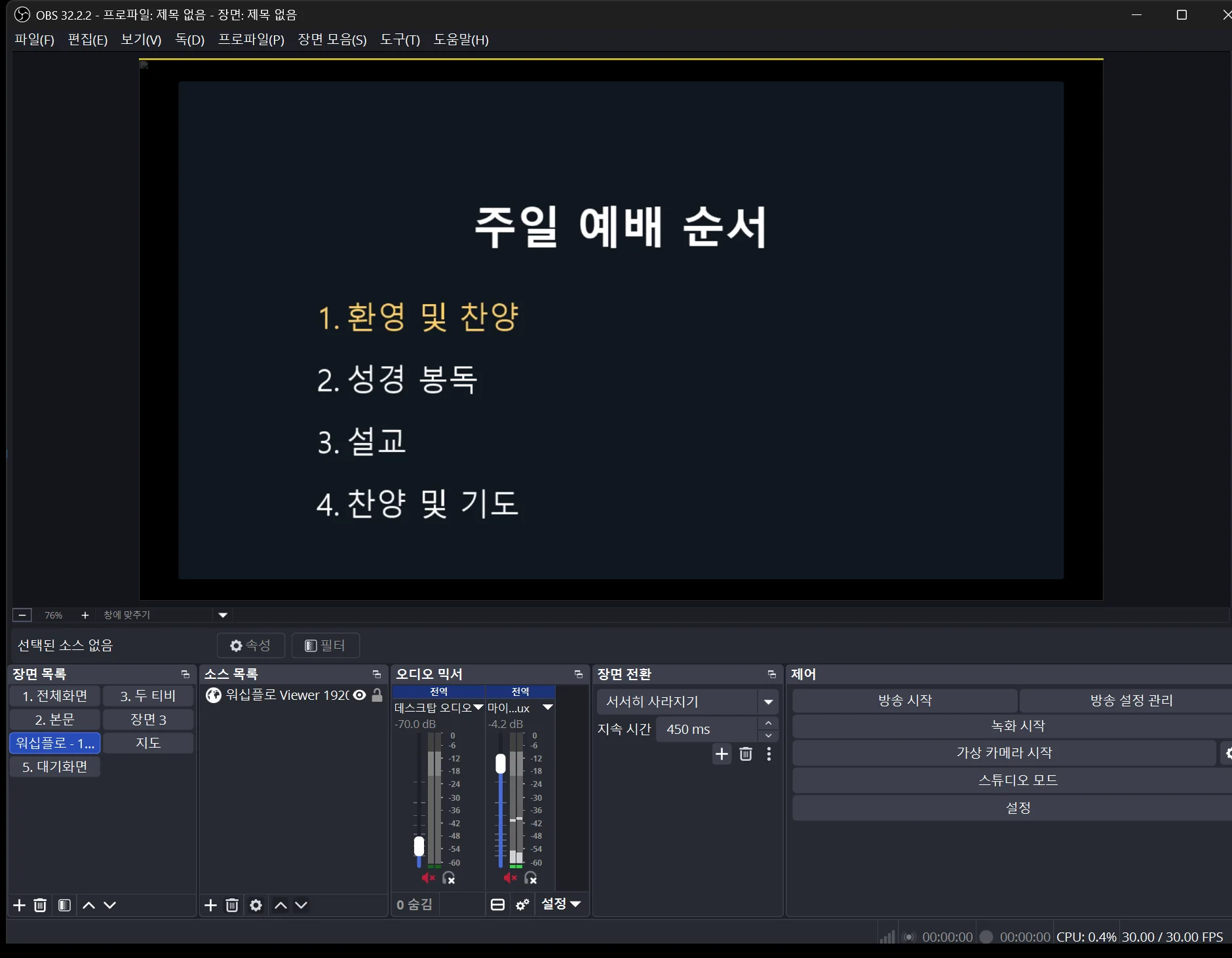
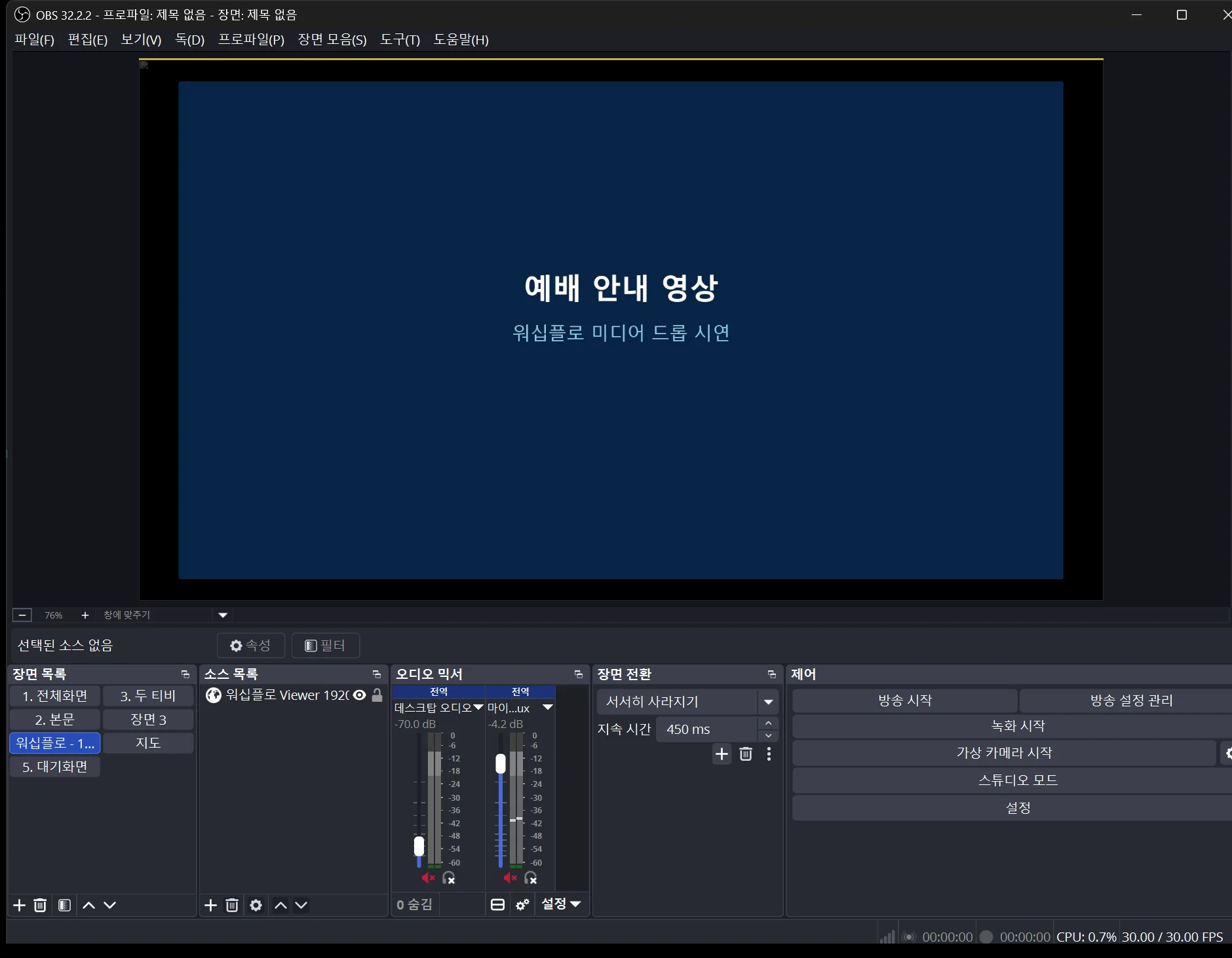
A browser source simply shows the screen. A websocket lets the program drive OBS itself. The addresses and steps below were tested against a running OBS.
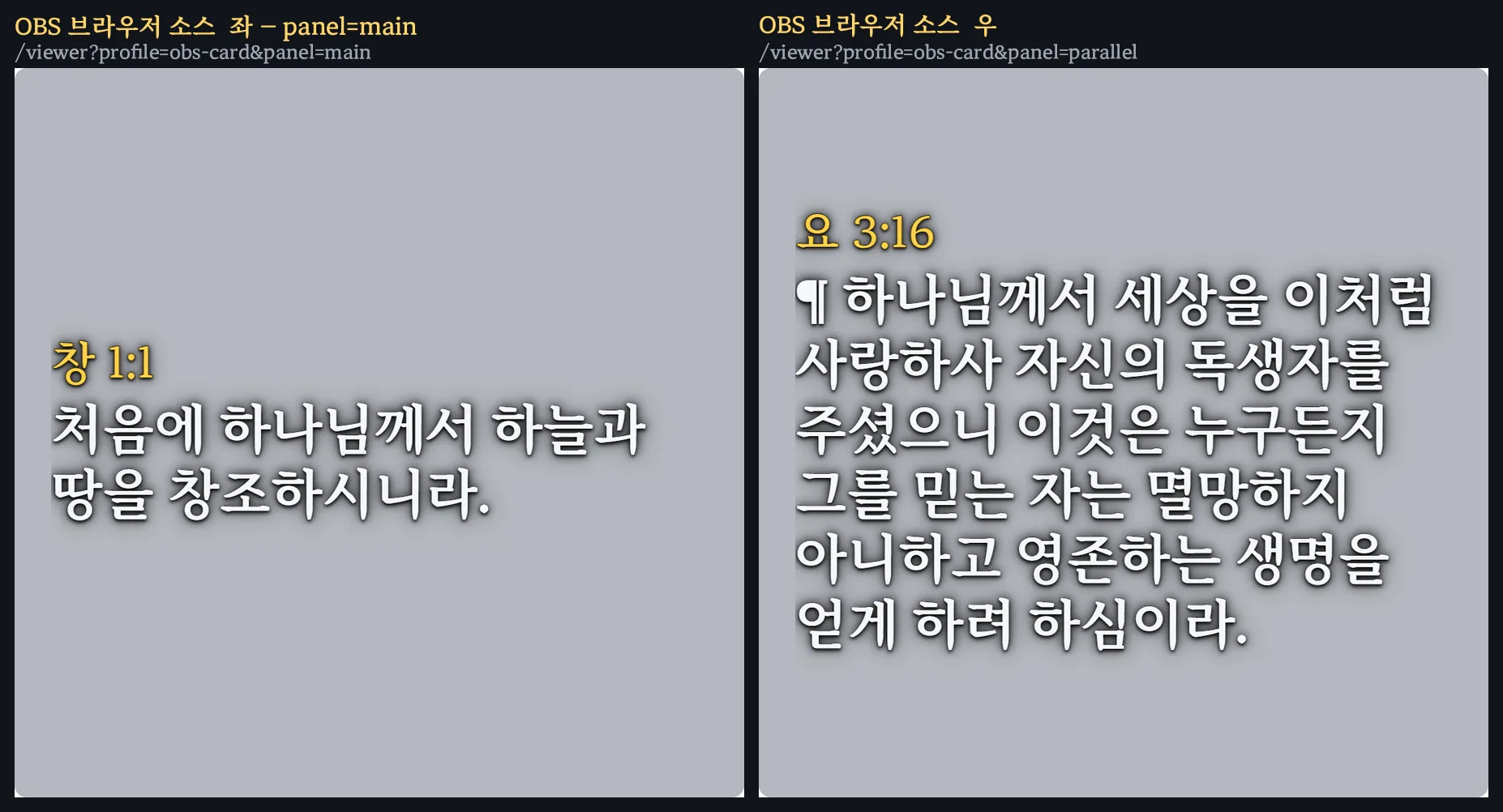
Add a browser source in OBS and paste the address. The program must be running for the screen to update.
/viewer/viewer?profile=obs-card&panel=main/viewer?profile=obs-card&panel=parallel/viewer?profile=kjv-only&kjvOnly=1&panel=mainThese addresses point at the PC running the program. If OBS runs on a different machine, open the same address from that machine.
When the program needs to move OBS itself — switching scenes, for example — use the websocket. Turn on obs-websocket in OBS and enter the port and password in the program; it reports whether the connection succeeded.
Tested on Windows with OBS 32.2.2 (obs-websocket 5.7.4). Installing basic scenes only works on the machine running OBS.
Click any one to open it at full size.
The program has to be running on the PC that drives the service, and the output goes to OBS on that machine. The setup used for these captures was a Windows PC with OBS Studio (obs-websocket 5.7.4).
A browser source just shows the screen. A websocket lets the program drive OBS itself. If you only need the screens, browser sources are enough; a websocket is for when the program also has to move OBS, such as switching scenes.
Add two browser sources and place them side by side. Passage and verse go to /viewer?profile=obs-card&panel=main, reference and parallel text to /viewer?profile=obs-card&panel=parallel. If you want everything in one frame, use /viewer.
Set the verse card's background opacity to 50%. The verse then sits over the camera image; at 0% only the countdown remains. 25%, 75% and 100% are available too.
There is, but it needs a monitor with the configured name to exist on the PC. The machine used for these captures did not have one, so we have not seen it open. We will describe it once we have watched it run into a projector.
The full-screen output has a KJV toggle, and there is a separate browser source address for a KJV-only display. KJV is long-worded, so it is worth checking the text size against your screen width.
None of this works yet, so there are no screens to show. As it does, the real captures will go on this page the same way.
Describe which service, in what order, and what has to be on screen — we will set up that sequence and show it to you.